> ## Documentation Index
> Fetch the complete documentation index at: https://docs.isometric.com/llms.txt
> Use this file to discover all available pages before exploring further.
# MCP server
> Integrate context on Isometric's protocols, processes and platform into your AI assistant
Isometric provides access to a remote MCP server. It allows suppliers, partners and verifiers to add key context on Isometric's protocols, the Standard and the Certify and Registry platform into common AI chat or coding assistants.
## Available tools
Isometric's MCP server enables AI assistants to access the following resources to provide context to their responses:
1. The Isometric Standard
2. Isometric's protocols
3. Isometric's protocol modules
4. User guides for the Certify and Registry platform documented on this site
5. Isometric's API documentation
## Connecting to the server
The Isometric MCP server is provided at:
```
https://api.isometric.com/mcp
```
If you are using the sandbox environment, a version connected to its data is available at:
```
https://api.sandbox.isometric.com/mcp
```
You need to have a user account on the Certify or Registry platform to connect to it.
Once connected, you can review which clients you have authorized, see when they were last used, and revoke their access under [Team settings → AI Integrations](https://registry.isometric.com/account/team-settings?tab=ai).
## Supported clients
### Pre-approved clients
Remote MCP server integration is supported by most modern AI assistants. The clients below support MCP server connections and have been pre-approved by Isometric for authentication. Setup instructions are available from the link on each provider.
* Anthropic Claude: [Claude.ai](https://support.anthropic.com/en/articles/11175166-getting-started-with-custom-connectors-using-remote-mcp#h_be22cbdf09), [Claude Code](https://docs.anthropic.com/en/docs/claude-code/mcp)
* [OpenAI ChatGPT Developer mode](https://platform.openai.com/docs/guides/developer-mode)
* Google Gemini: [CLI](https://github.com/google-gemini/gemini-cli/blob/main/docs/tools/mcp-server.md), [Code Assist](https://developers.google.com/gemini-code-assist/docs/use-agentic-chat-pair-programmer)
* [Microsoft VS Code with Copilot](https://code.visualstudio.com/docs/copilot/customization/mcp-servers)
* [Cursor](https://docs.cursor.com/en/context/mcp)
* [Windsurf](https://docs.windsurf.com/windsurf/cascade/mcp)
* [Block Goose](https://goose-docs.ai/docs/getting-started/using-extensions/#mcp-servers)
### Using the connector with other clients
You may also be able to use the Isometric MCP server with other clients. In order to connect, the following features must be supported by the client:
* [Streamable HTTP](https://modelcontextprotocol.io/specification/2025-11-25/basic/transports#streamable-http) transport
* [Authorization](https://modelcontextprotocol.io/specification/2025-11-25/basic/authorization)
* One of two supported client registration mechanisms:
* [Client ID Metadata Document](https://modelcontextprotocol.io/specification/2025-11-25/basic/authorization#client-id-metadata-documents): this is the preferred mechanism for the connector, or
* [Preregistration](https://modelcontextprotocol.io/specification/2025-11-25/basic/authorization#preregistration): this method requires creation of a client ID. Isometric will accept any arbitrary client ID and no secret is required.
The domains for the URI to which users are redirected after authorizing and for the CIMD client ID (if present) must also be allowlisted by Isometric. If connecting to the server fails with a `Failed to fetch CIMD document` or `Failed to verify TLS certificate of CIMD/redirect URI` error, but your client works correctly with other MCP servers, please contact Isometric at [support@isometric.com](mailto:support@isometric.com) to request domain approval.
If your client prefers the DCR method and fails because it does not discover support for it, you may need to configure a client ID, as with the preregistration method above. For example, [Google Gemini CLI](https://github.com/google-gemini/gemini-cli/blob/main/docs/tools/mcp-server.md) requires this approach as of May 2026.
## Setup examples
### Claude.ai and Claude for desktop
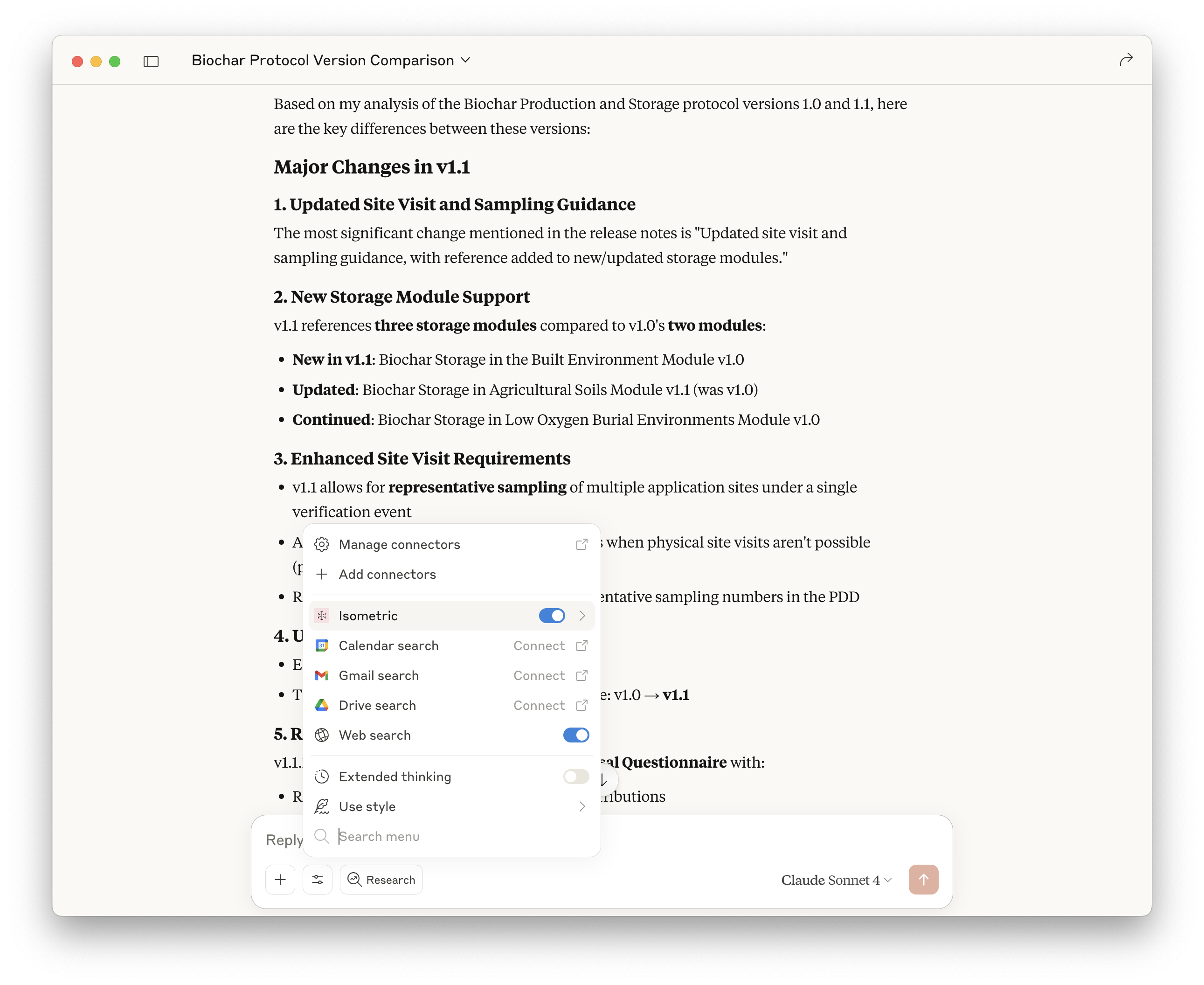
Open [Settings → Connectors](https://claude.ai/settings/connectors) on Claude.ai or in Claude Desktop.
Scroll to the bottom of the Connectors settings page and click **Add custom connector**.
If the button is disabled, you may require support from your organization owner to create the new connector.
Organization owners can manage connectors at [Organization settings → Connectors](https://claude.ai/admin-settings/connectors).
In the configuration dialog, enter the name of the connector (e.g. "Isometric") and paste the MCP server URL. Then click the **Add** button.
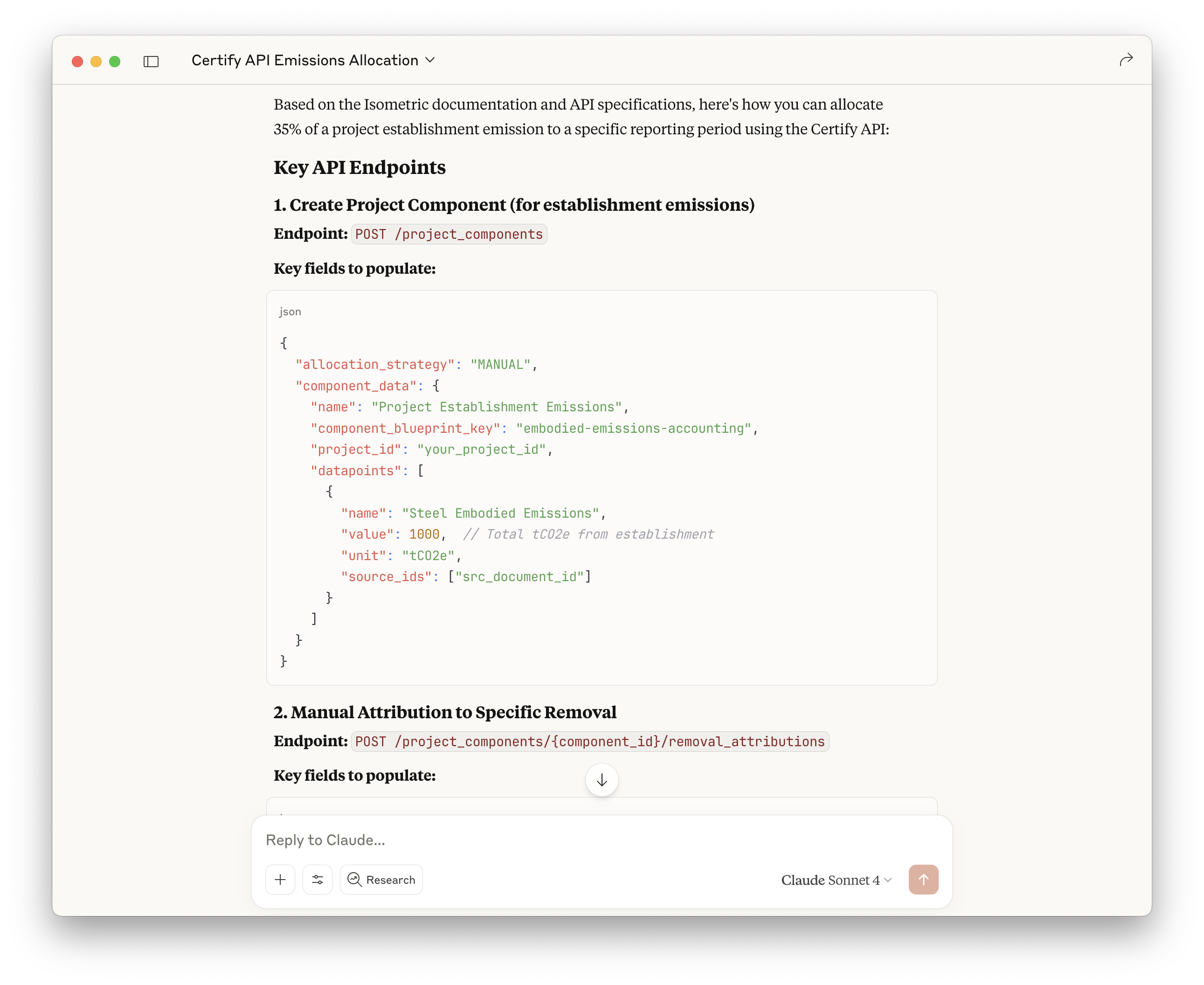
Click the **Connect** button to connect to the MCP server. If you are not already logged into Isometric in your browser, you will be prompted to log in first. You will then be shown a consent screen to allow the MCP connection. Click **Allow** to complete the connection.
 ### ChatGPT
Go to the Settings → Apps → [Advanced settings](https://chatgpt.com/#settings/Connectors/Advanced) tab.
Toggle [Developer mode](https://platform.openai.com/docs/guides/developer-mode) on.
Go to the Settings → [Apps](https://chatgpt.com/#settings/Connectors) tab and click **Create app**.
Enter the **Name** of the app (e.g. "Isometric") and paste the relevant **MCP Server URL**.
For **Authentication**, choose `OAuth`.
Go to **Advanced OAuth settings**. If `Client Identified Metadata Document (CIMD)` is available as a **Registration method**, select this option. If it isn't, select `User-Defined OAuth Client` and enter any value as **OAuth Client ID** (this is a workaround for [this problem](https://community.openai.com/t/cimd-is-unavailable-because-the-server-did-not-advertise-cimd-support/1378920)).
Check the **I understand and want to continue** checkbox under **Custom MCP servers introduce risk.**.
Click **Create**.
An authorization window will open in your browser. If you are not already logged into Isometric in your browser, you will be prompted to log in first. You will then be shown a consent screen to allow the MCP connection. Click **Allow** to complete the connection.
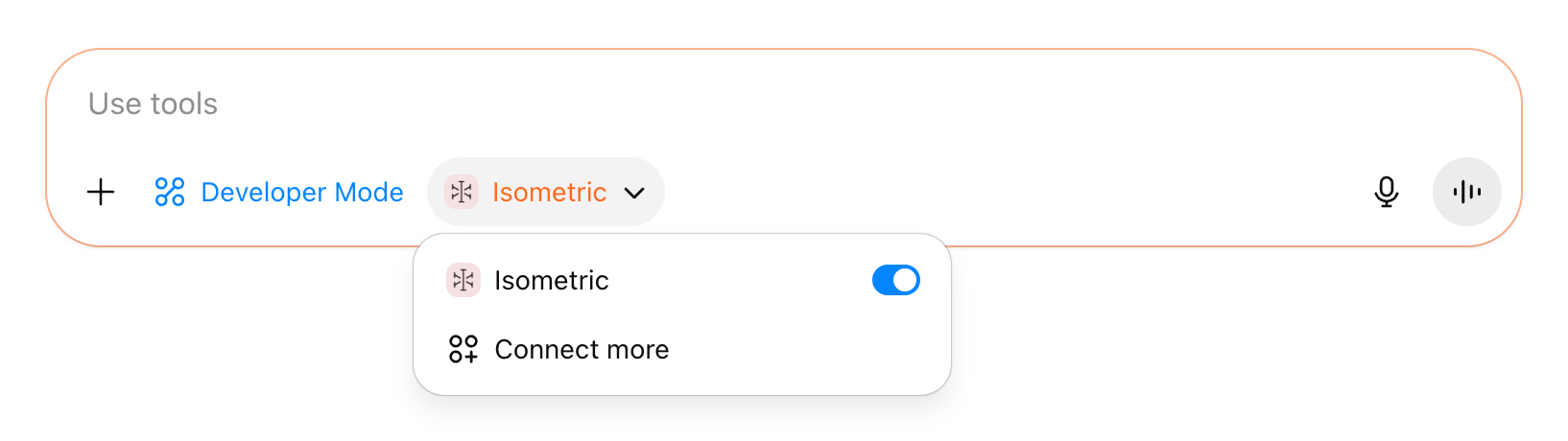
The Isometric connector will appear in the composer's "[Developer mode](https://platform.openai.com/docs/guides/developer-mode)" tool when you start a new chat.
### ChatGPT
Go to the Settings → Apps → [Advanced settings](https://chatgpt.com/#settings/Connectors/Advanced) tab.
Toggle [Developer mode](https://platform.openai.com/docs/guides/developer-mode) on.
Go to the Settings → [Apps](https://chatgpt.com/#settings/Connectors) tab and click **Create app**.
Enter the **Name** of the app (e.g. "Isometric") and paste the relevant **MCP Server URL**.
For **Authentication**, choose `OAuth`.
Go to **Advanced OAuth settings**. If `Client Identified Metadata Document (CIMD)` is available as a **Registration method**, select this option. If it isn't, select `User-Defined OAuth Client` and enter any value as **OAuth Client ID** (this is a workaround for [this problem](https://community.openai.com/t/cimd-is-unavailable-because-the-server-did-not-advertise-cimd-support/1378920)).
Check the **I understand and want to continue** checkbox under **Custom MCP servers introduce risk.**.
Click **Create**.
An authorization window will open in your browser. If you are not already logged into Isometric in your browser, you will be prompted to log in first. You will then be shown a consent screen to allow the MCP connection. Click **Allow** to complete the connection.
The Isometric connector will appear in the composer's "[Developer mode](https://platform.openai.com/docs/guides/developer-mode)" tool when you start a new chat.
 ## Suggested prompts
Some suggested prompts to test the MCP server connection are shown below:
```
What Isometric-specific capabilities do you have?
```
```
How does attribution of emissions work in Certify?
```
```
What modules does the Biochar v1.2 protocol reference?
```
```
What are the key differences between Biochar v1.1 and v1.2 protocols?
```
## Usage tips
### General advice
If you are unfamiliar with AI assistants, reading educational guides on working with these tools, such as Anthropic's free [AI Fluency](https://anthropic.skilljar.com/ai-fluency-framework-foundations) course are a good starting point.
Assistants can also help guide you on how to get the most out of them: asking them how to work with them effectively as an initial prompt can be a helpful place to begin.
If asking multiple different questions, it's generally best to start a new chat for each question rather than continuing a previous chat, as models usually perform better with shorter conversation histories.
If you want to clarify a prompt to get a better answer, editing your original prompt is usually more effective than adding further context in a second prompt.
### Base prompts
Using a base prompt can help to ensure more reliable behavior from an AI assistant. For chats using the Isometric MCP server, consider using the following base prompt or a similar version:
```markdown theme={null}
# If you need information about Isometric
If you need authoritative information about the Isometric platform to answer my question or solve a task I have for you, you MUST follow the rules set out below.
## Permitted information sources
You MUST use the Isometric MCP server to answer any users questions about the Isometric platform.
You MUST NOT use the Internet or other sources. The ONLY permitted information source is Isometric's official MCP server.
## Answering users' questions
Before answering the question, use the `how_to` tool to more effectively use the capabilities provided by the server.
When answering the question, you MUST state the source of your answer. For example, an Isometric protocol, module or official documentation.
## Error conditions
If the official Isometric MCP server is not available to you, you MUST state to the user that the integration is broken and an IT administrator must review it.
If the server is available, but it doesn't provide information that the user asks about, you MUST tell the user that this capability is missing from the Isometric MCP server. You MUST suggest sharing feedback with Isometric to add/amend it.
When you encounter ANY issues with MCP server tools (incorrect URLs, unexpected responses, errors, data inconsistencies), you MUST report them to the Isometric team using the `submit_feedback` tool.
```
## Suggested prompts
Some suggested prompts to test the MCP server connection are shown below:
```
What Isometric-specific capabilities do you have?
```
```
How does attribution of emissions work in Certify?
```
```
What modules does the Biochar v1.2 protocol reference?
```
```
What are the key differences between Biochar v1.1 and v1.2 protocols?
```
## Usage tips
### General advice
If you are unfamiliar with AI assistants, reading educational guides on working with these tools, such as Anthropic's free [AI Fluency](https://anthropic.skilljar.com/ai-fluency-framework-foundations) course are a good starting point.
Assistants can also help guide you on how to get the most out of them: asking them how to work with them effectively as an initial prompt can be a helpful place to begin.
If asking multiple different questions, it's generally best to start a new chat for each question rather than continuing a previous chat, as models usually perform better with shorter conversation histories.
If you want to clarify a prompt to get a better answer, editing your original prompt is usually more effective than adding further context in a second prompt.
### Base prompts
Using a base prompt can help to ensure more reliable behavior from an AI assistant. For chats using the Isometric MCP server, consider using the following base prompt or a similar version:
```markdown theme={null}
# If you need information about Isometric
If you need authoritative information about the Isometric platform to answer my question or solve a task I have for you, you MUST follow the rules set out below.
## Permitted information sources
You MUST use the Isometric MCP server to answer any users questions about the Isometric platform.
You MUST NOT use the Internet or other sources. The ONLY permitted information source is Isometric's official MCP server.
## Answering users' questions
Before answering the question, use the `how_to` tool to more effectively use the capabilities provided by the server.
When answering the question, you MUST state the source of your answer. For example, an Isometric protocol, module or official documentation.
## Error conditions
If the official Isometric MCP server is not available to you, you MUST state to the user that the integration is broken and an IT administrator must review it.
If the server is available, but it doesn't provide information that the user asks about, you MUST tell the user that this capability is missing from the Isometric MCP server. You MUST suggest sharing feedback with Isometric to add/amend it.
When you encounter ANY issues with MCP server tools (incorrect URLs, unexpected responses, errors, data inconsistencies), you MUST report them to the Isometric team using the `submit_feedback` tool.
```